
In short: When a customer returns goods and the order already had an invoice, refunding the money isn’t enough – you need a credit note (a corrective invoice). WooCommerce’s refund gives the money back and changes the status, but creates no document. Below we explain when a credit note is needed, what it must include, how to handle returning some items or refunding part of the amount, and how to have credit notes issued automatically for every refund.
When do you need a credit note?
You issue a credit note whenever, after the invoice was issued, what was sold or the price changes. In an online shop that usually means:
- a full return, e.g. under the 14-day right of withdrawal in the EU,
- a partial return – the customer sends back one of several items,
- a partial refund – a discount for damaged packaging or a late delivery,
- a mistake on the invoice – wrong price, quantity or VAT rate.
Credit note or correction note?
Some countries, including Poland, used to allow the buyer to fix minor formal errors with a “correction note”. For invoices issued in Poland’s KSeF system, correction notes are no longer used – every error is fixed with a corrective invoice. The simplest approach is one rule: every change = a credit note.
WooCommerce refund vs. credit note – what’s the difference?
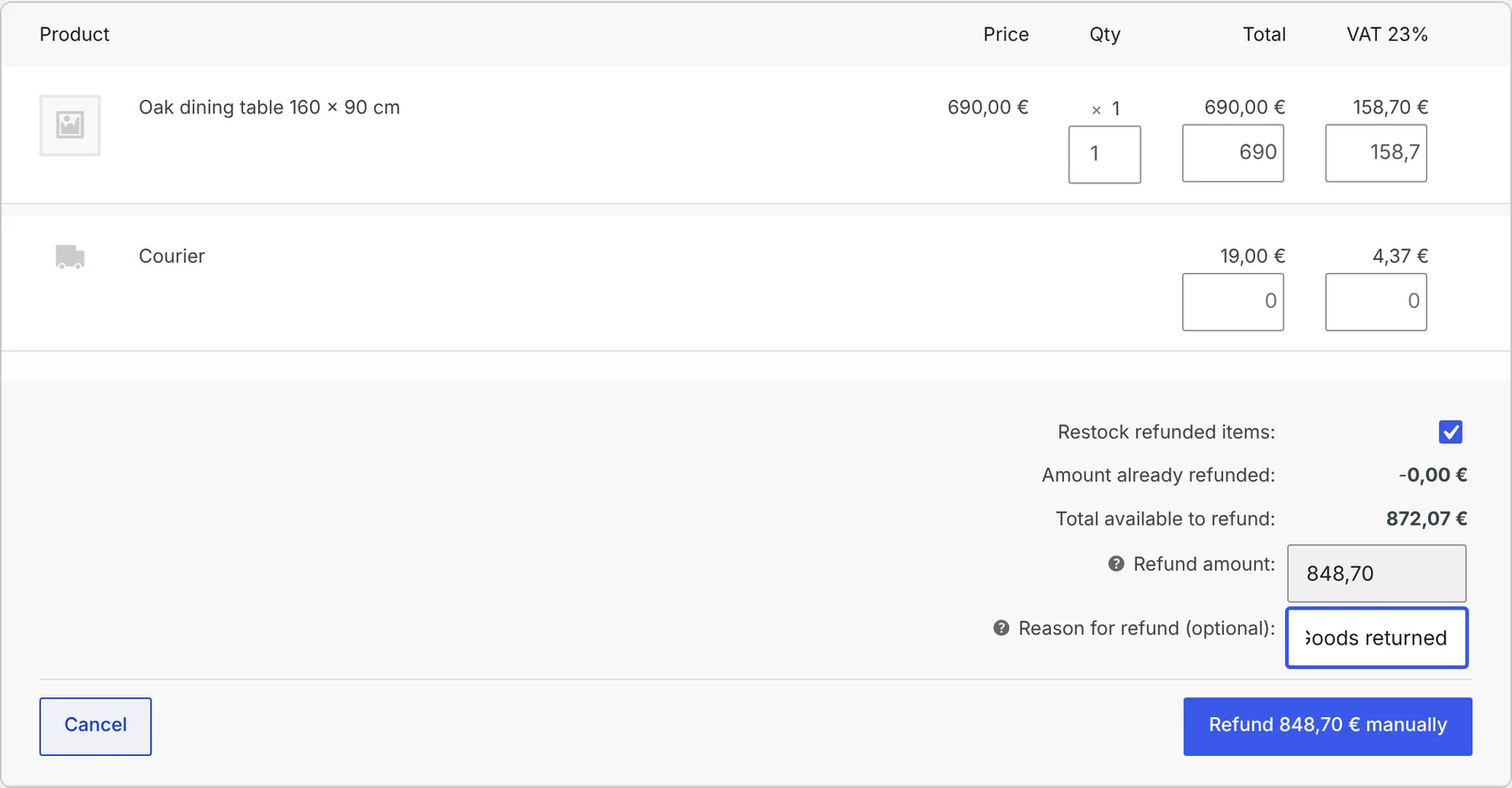
The Refund button on a WooCommerce order does three things: returns the money (manually or through the payment gateway), optionally restocks the items and changes the order status if the whole order is refunded. It doesn’t create any accounting document. The credit note has to be issued separately – manually or automatically at the refund.
What must a credit note include?
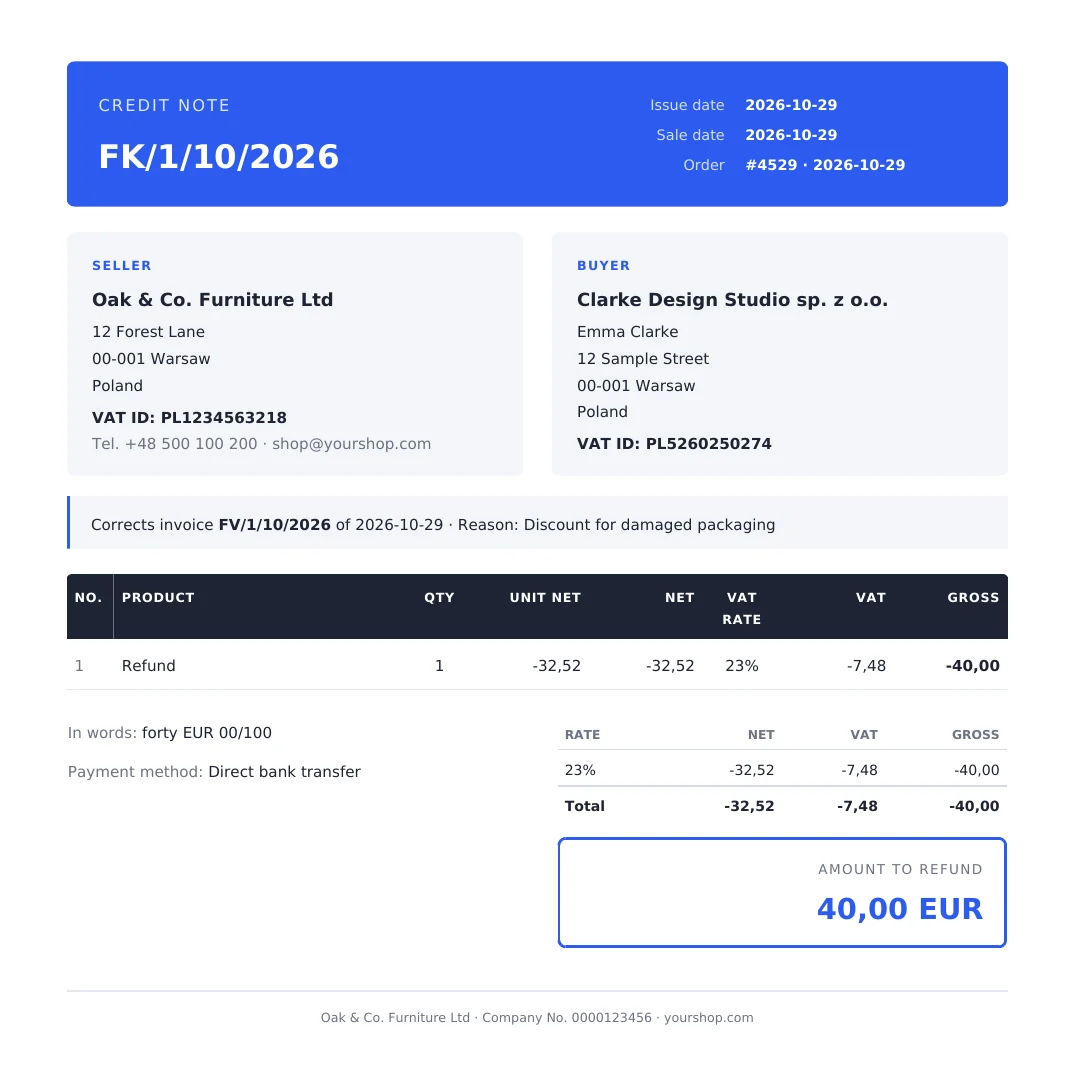
- a title showing it’s a correction, e.g. “Credit note”,
- its own sequential number from the credit note series and an issue date,
- the number of the invoice being corrected (and, for KSeF invoices, its KSeF number),
- the reason, e.g. “Goods returned”,
- seller and buyer details,
- the correction amounts: the net, VAT and gross difference by VAT rate.
How to handle partial returns and partial refunds
Returning some items is simple: the credit note covers only the returned products, with their VAT rates.
Refunding part of the amount, e.g. a 10 EUR goodwill refund on an order with products at 23% and 8% VAT, means splitting that amount across the rates. The fairest and most common method is a split proportional to the value of the items at each rate. It’s easy to get wrong by hand, so it’s best left to the system.
Credit notes and KSeF
If the invoice went to KSeF, the credit note must go there too. An invoice in KSeF can’t be changed or deleted, so a credit note is the only way to fix a mistake. More in how to send WooCommerce invoices to KSeF automatically.
How to issue credit notes automatically for refunds, step by step
WooCommerce doesn’t issue invoices or credit notes, so you need a plugin. We’ll show it with PDF Invoices, Credit Notes & KSeF for WooCommerce.
Step 1: switch on credit notes
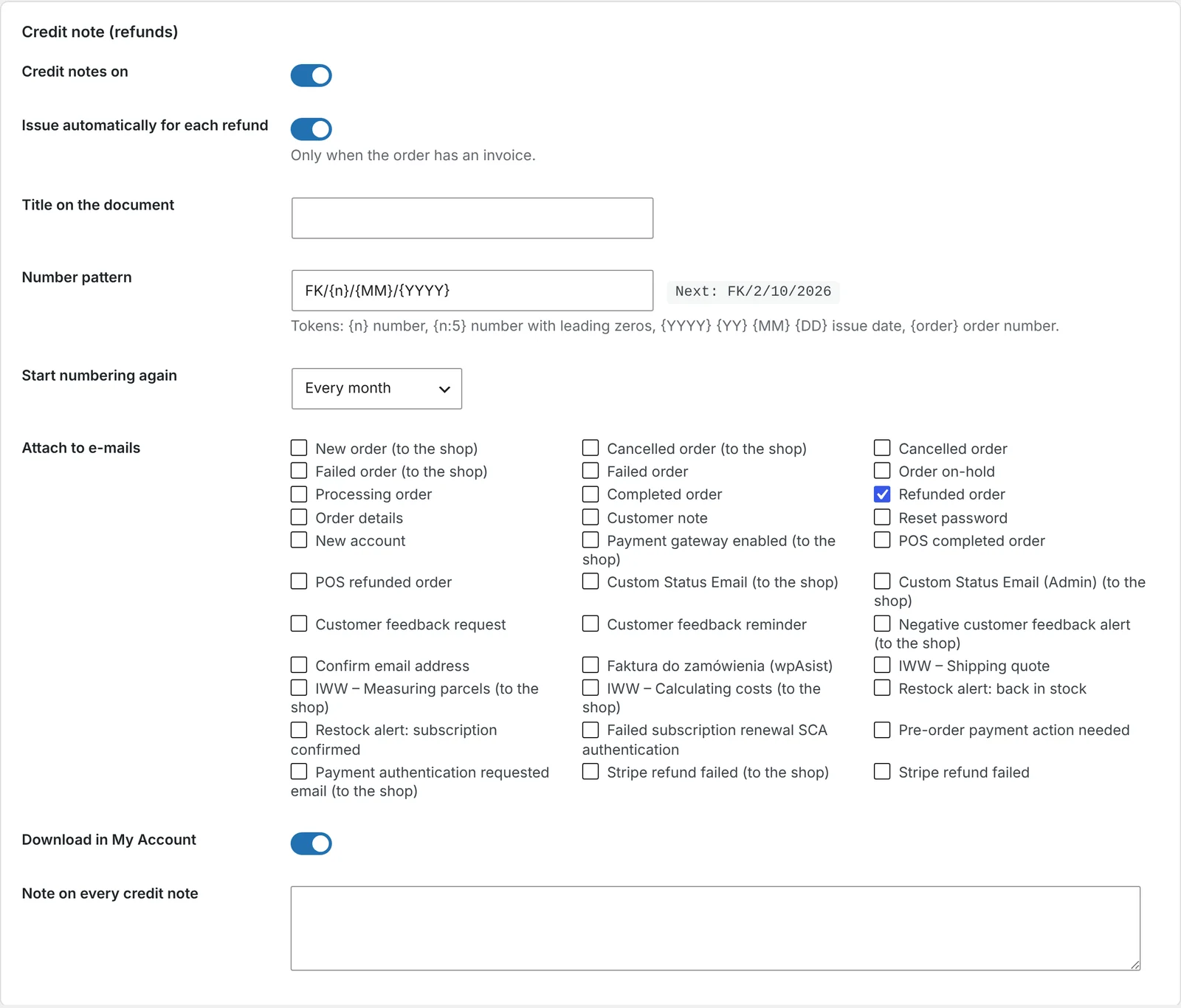
Go to WooCommerce → Invoices → Settings, section Credit note (refunds). Switch credit notes on, set the number pattern, e.g. CN/{n}/{MM}/{YYYY}, and tick Issue automatically for each refund.
Step 2: attach the credit note to the e-mail
Choose to attach the credit note to the WooCommerce “Refunded order” e-mail. The customer gets the refund notice together with the document.
Step 3: refund the order
On the order, click Refund, choose the items or enter an amount and add a reason. When the refund is saved, the plugin issues a credit note for the invoice – with the corrected invoice number, the reason and the amounts. A partial refund is split proportionally across the order’s VAT rates.
Step 4: check the documents on the order
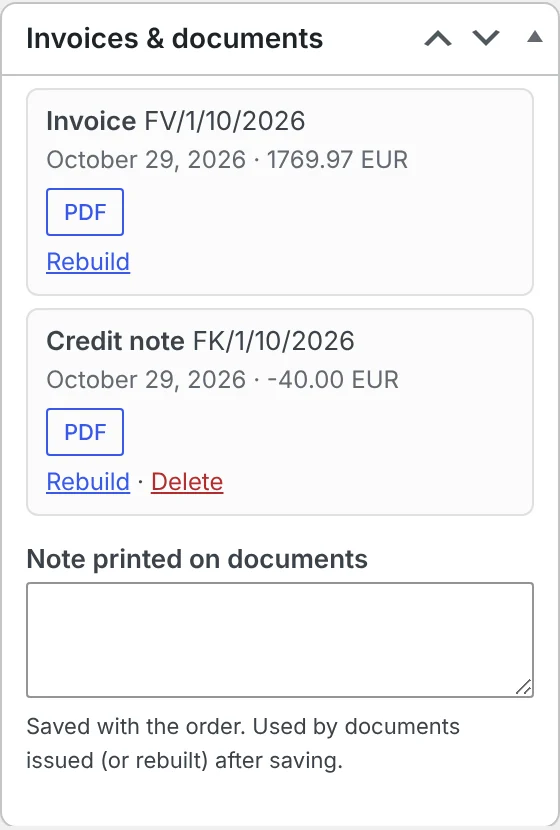
The Invoices & documents box on the order shows the invoice and the credit note – and, if you use KSeF, their status in the system.
Things to watch out for
- A credit note needs an invoice. If the order had no invoice, there’s nothing to correct.
- Give a reason for the refund. The reason from the refund form goes on the credit note – “Goods returned” beats an empty field.
- Several refunds on one order. Each refund gets its own credit note, so the history stays clear.
- VAT reporting. When the credit note is reported for VAT depends on the situation. Agree the rules with your accountant.
Frequently asked questions
Does a WooCommerce refund create a credit note?
No. WooCommerce returns the money and changes the status, but creates no documents. The credit note has to be issued separately or automatically at the refund.
Do I have to split a partial refund across VAT rates?
Yes, if the order contains products at different rates. The amount is usually split in proportion to the value of the items at each rate.
Can I edit the invoice instead of issuing a credit note?
No. An issued invoice isn’t edited. Mistakes are fixed with a credit note – and for KSeF invoices that’s the only option.
Will the customer get the credit note by e-mail?
Yes, if you attach it to the WooCommerce “Refunded order” e-mail. They can also download it in their account.
Will the credit note go to KSeF?
Yes, if the invoice was sent to KSeF and the KSeF module is switched on.
7 November 2026 · 5 min read
How to Send a Pro Forma Invoice in WooCommerce for Bank Transfer Payments
A customer picked bank transfer and needs a document to pay from – especially if a company is…
5 November 2026 · 6 min read
How to Generate Invoices Automatically in WooCommerce When an Order Is Completed
WooCommerce sends order confirmations but doesn't create invoices. Here's when to issue an invoice in an online shop,…
4 November 2026 · 7 min read
How to Send WooCommerce Invoices to KSeF Automatically (Poland’s e-Invoicing System)
Poland's KSeF e-invoicing system changed how online shops issue invoices. Here's who it applies to and when, what…
6 November 2026 · 5 min read
WooCommerce Plugin That Connects Your Store with Allegro – Listings, Stock and Orders
If you sell in WooCommerce and on Allegro, you probably edit products twice, correct stock by hand and…
5 November 2026 · 5 min read
How to Add GPSR Data to Allegro Listings from WooCommerce?
Since December 2024, listings on Allegro must include the data required by the EU General Product Safety Regulation.…
4 November 2026 · 5 min read
How to Get Allegro Orders into WooCommerce Automatically?
Handling Allegro orders in one panel and store orders in another means retyping addresses, parcel locker codes and…
3 November 2026 · 6 min read
How to List WooCommerce Products on Allegro in Polish from a Multilingual Store?
Allegro buyers search in Polish, Allegro has its own categories and required parameters, and titles are limited to…
3 November 2026 · 5 min read
A WooCommerce Plugin That Notifies Your Warehouse and Accountant When an Order Status Changes
Forwarding orders in chat apps and passing e-mails along is daily life for many shops. Learn how to…
2 November 2026 · 7 min read
How to Sync WooCommerce Stock and Prices with Allegro When Your Store Uses EUR?
Selling the same products in a euro-priced WooCommerce store and on Allegro in złoty raises two questions: how…
2 November 2026 · 5 min read
How to Send a Customer a Payment Link for a WooCommerce Order
A phone order, an extra payment after a change, or a payment that didn't go through – in…