
In short: WooCommerce doesn’t create invoices – an order confirmation e-mail is not an invoice. In many shops someone retypes orders into invoicing software every day. You can automate that: the invoice is created when the order reaches a chosen status, such as “Completed”, gets a correct number and reaches the customer by e-mail and in their account. Below we explain when to issue an invoice, what it must include and how to set it up step by step.
Does WooCommerce create invoices?
No. WooCommerce has order e-mails, but no invoices, document numbering or VAT ID field. So shops usually take one of three routes:
- issue invoices by hand in separate software,
- connect the shop to an external invoicing service,
- issue invoices directly in the shop, from the order data.
The third route has one big advantage: the invoice is created from exactly the data the customer entered at checkout, so nothing has to be retyped.
When should an online shop issue an invoice?
VAT rules differ by country, but they usually allow some flexibility. In Poland, for example, an invoice is generally issued no later than the 15th day of the month after the month of supply. In practice, shops choose the moment that fits their process:
| When | Good for | Watch out for |
|---|---|---|
| After payment (“Processing”) | The customer gets the invoice right after paying | A cancelled order will need a credit note |
| After fulfilment (“Completed”) | The invoice matches what was actually shipped | The customer waits until dispatch |
| Manually, on request | Few invoice orders, mostly consumers | Easy to miss one |
The most common choice is “Completed” – the invoice matches what actually left the warehouse, so credit notes are rare.
Issue date vs. date of supply
An invoice carries two dates. The issue date is the day the invoice is created; the date of supply is the day of delivery or payment. When invoices are created automatically at a status, the date of supply can be, for example, the date the order was completed or paid.
What must an invoice from a shop include?
A VAT invoice typically includes:
- the issue date and a sequential, unique number,
- seller and buyer details – and the buyer’s VAT ID for business sales,
- the date of supply, if it differs from the issue date,
- the description, quantity and net unit price of goods or services,
- the VAT rate and net, VAT and gross totals broken down by rate.
If you’re VAT exempt, the document shows an exemption note instead of VAT rates.
Gap-free invoice numbering
An invoice number must be sequential and unique within its series. In a shop where several orders can be completed in the same second, that’s not as simple as it sounds. A good solution:
- uses a number pattern, e.g. INV/{n}/{MM}/{YYYY}, giving INV/12/11/2026,
- lets you restart numbering every month, every year or never,
- locks the number while the invoice is being issued, so two orders never get the same number,
- lets you continue numbering from your previous software.
How does the customer get the invoice?
It’s most convenient for the customer and for you when the invoice is:
- attached to the WooCommerce e-mail, e.g. “Completed order”,
- downloadable in My Account next to the order,
- in the language the customer shopped in – buy on the English version of the shop, get an English invoice.

How to set up automatic invoices in WooCommerce, step by step
WooCommerce has no invoices, so you need a plugin. We’ll show it with PDF Invoices, Credit Notes & KSeF for WooCommerce.
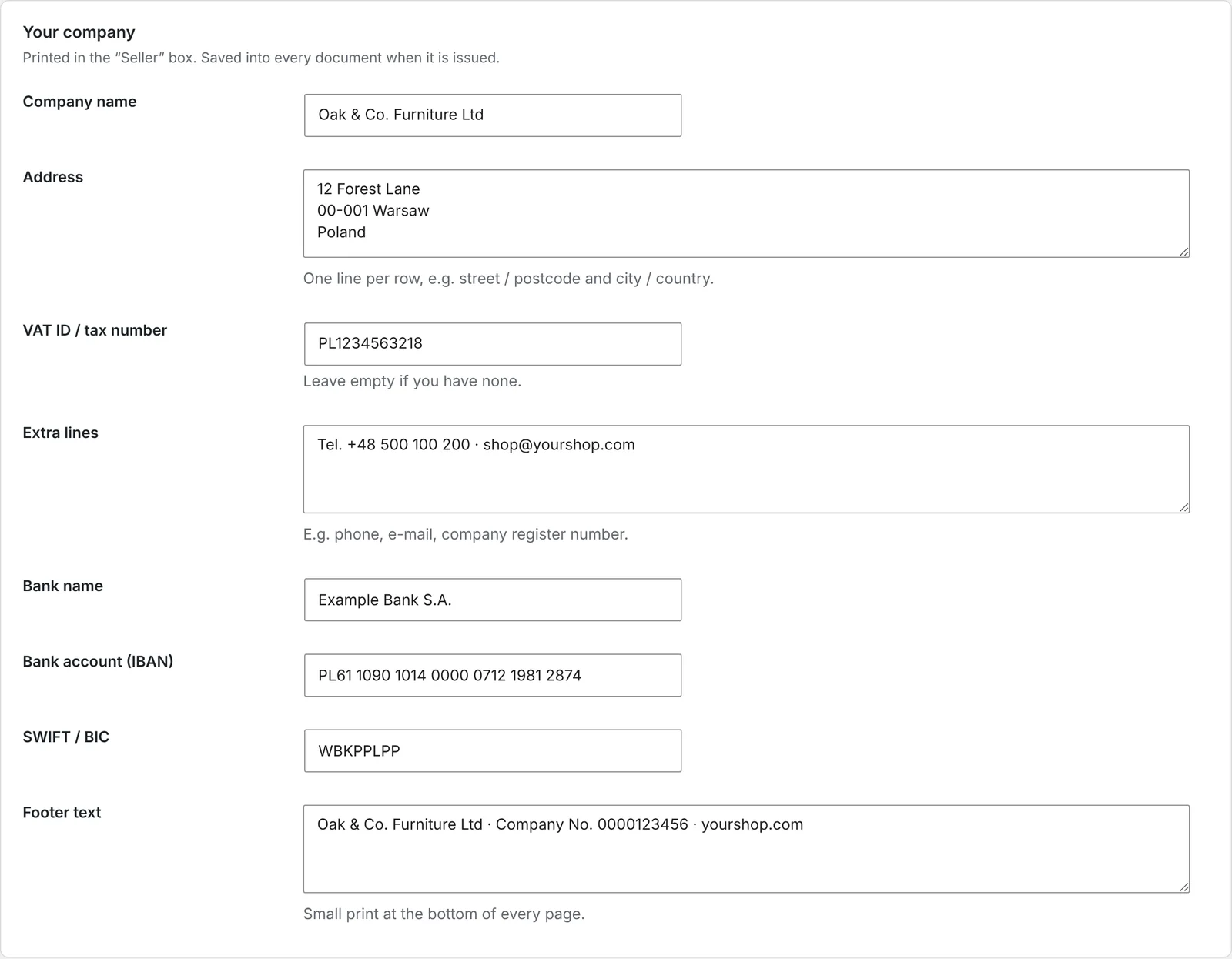
Step 1: enter your company details
Go to WooCommerce → Invoices → Settings and enter the details printed in the “Seller” box: name, address, VAT ID, bank and account number, and a footer.
Step 2: choose the look
There are two templates: Aurora with a coloured header bar and Ledger with a classic boxed layout. Add your logo and brand colour, and switch on amount in words and SKU if you need them.
Step 3: set the numbering and the trigger
In the Invoice section, enter the number pattern, choose when numbering restarts and pick the status at which the invoice is issued automatically – e.g. “Completed”. Next to the pattern you can see the number the next invoice will get.
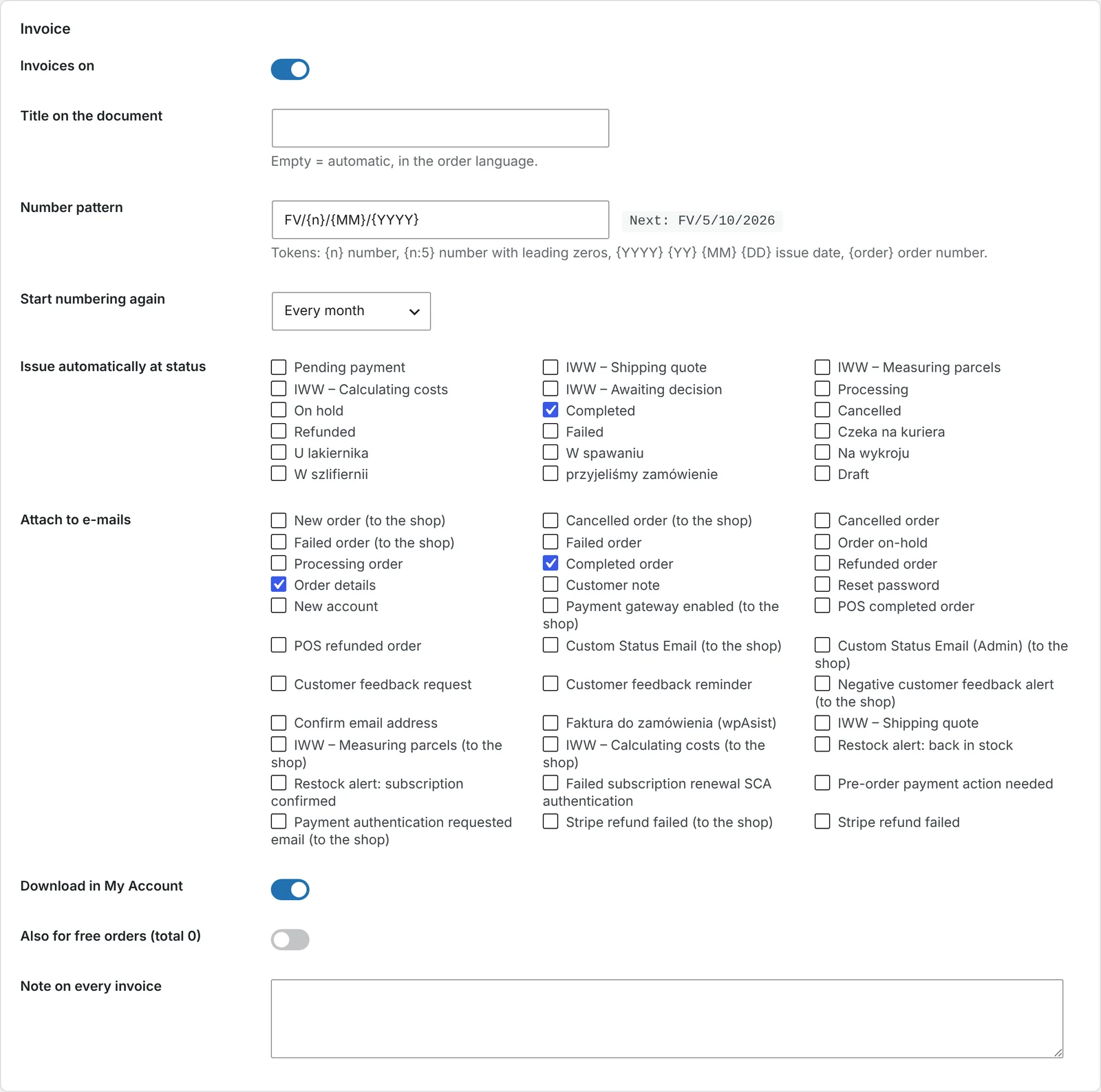
Step 4: pick the e-mails and My Account
Choose which WooCommerce e-mails the invoice is attached to, e.g. “Completed order” and “Order details”, and whether customers can download it in their account.
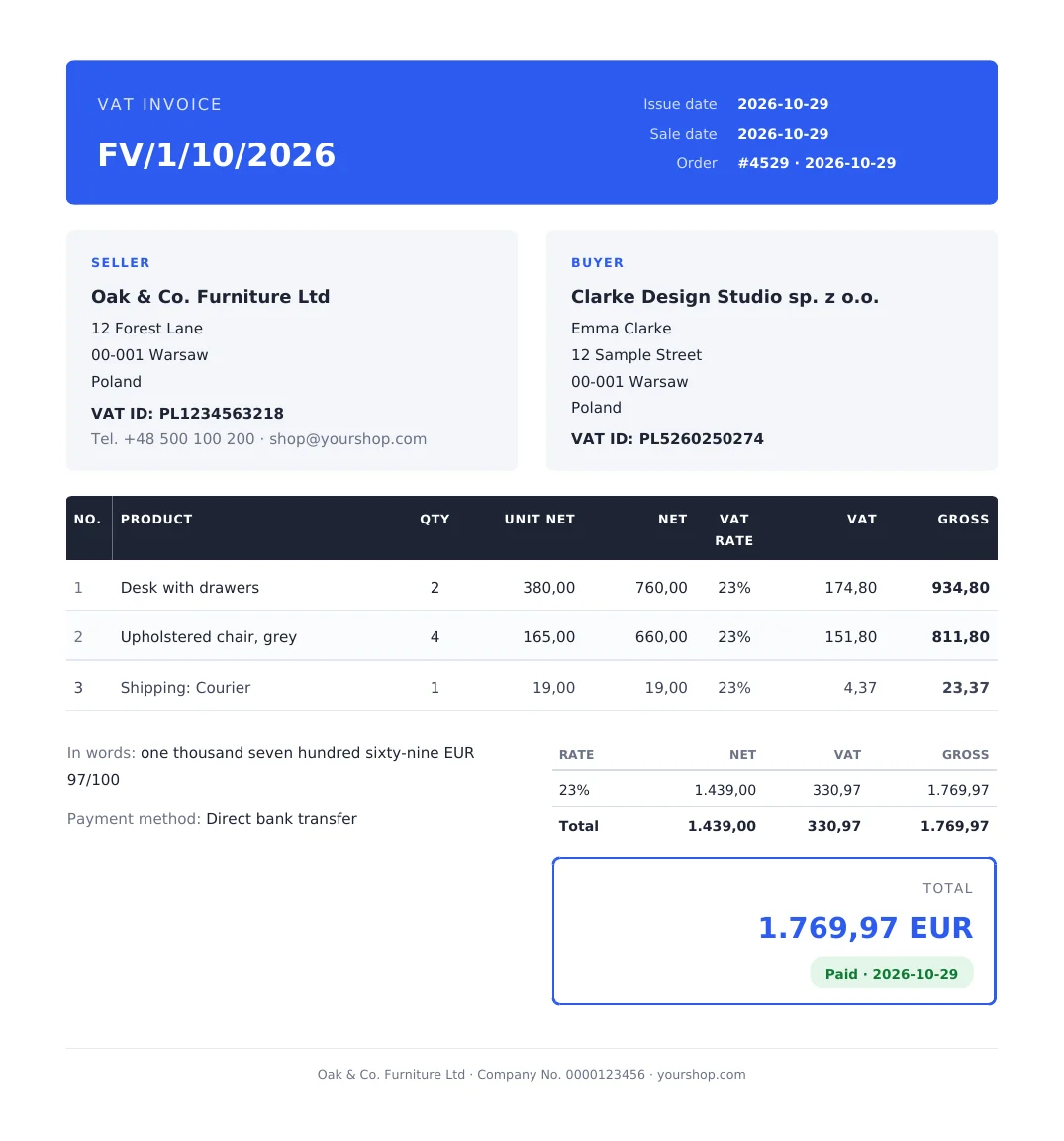
Step 5: check the preview
Tools → Preview shows the invoice built from your latest order. Nothing is saved and no number is used.
Things to watch out for
- Invoices don’t change. When an invoice is issued, your company details, the buyer and the items are saved into the document. Later changes to the order or settings don’t affect it – which is exactly what the rules require.
- Fix mistakes with a credit note. Only the latest document in a series can be deleted, so the numbering never has gaps. See how to issue a credit note in WooCommerce.
- Free orders. Decide whether orders with a zero total should get an invoice.
- B2B invoices in Poland. Invoices to businesses must go to KSeF. See how to send WooCommerce invoices to KSeF automatically.
Frequently asked questions
Can an order confirmation e-mail serve as an invoice?
No. An order confirmation lacks the elements an invoice requires, such as a sequential number and totals by VAT rate.
Which status is best for issuing invoices?
Most shops use “Completed”, because the invoice then matches what was actually shipped. If customers expect an invoice right after paying, choose “Processing”.
Can I continue numbering from my previous software?
Yes. Just enter the number the next invoice should get.
Can customers download invoices themselves?
Yes. The invoice is available next to the order in My Account and as an attachment to the e-mails you choose.
Do invoices work in a multilingual shop?
Yes. The invoice can follow the order language (WPML, Polylang, TranslatePress) or always use one language of your choice.
4 November 2026 · 7 min read
How to Send WooCommerce Invoices to KSeF Automatically (Poland’s e-Invoicing System)
Poland's KSeF e-invoicing system changed how online shops issue invoices. Here's who it applies to and when, what…
5 November 2026 · 5 min read
How to Add GPSR Data to Allegro Listings from WooCommerce?
Since December 2024, listings on Allegro must include the data required by the EU General Product Safety Regulation.…
4 November 2026 · 5 min read
How to Get Allegro Orders into WooCommerce Automatically?
Handling Allegro orders in one panel and store orders in another means retyping addresses, parcel locker codes and…
3 November 2026 · 6 min read
How to List WooCommerce Products on Allegro in Polish from a Multilingual Store?
Allegro buyers search in Polish, Allegro has its own categories and required parameters, and titles are limited to…
3 November 2026 · 5 min read
A WooCommerce Plugin That Notifies Your Warehouse and Accountant When an Order Status Changes
Forwarding orders in chat apps and passing e-mails along is daily life for many shops. Learn how to…
2 November 2026 · 7 min read
How to Sync WooCommerce Stock and Prices with Allegro When Your Store Uses EUR?
Selling the same products in a euro-priced WooCommerce store and on Allegro in złoty raises two questions: how…
2 November 2026 · 5 min read
How to Send a Customer a Payment Link for a WooCommerce Order
A phone order, an extra payment after a change, or a payment that didn't go through – in…
1 November 2026 · 7 min read
How to Sell on Allegro from a WooCommerce Store Outside Poland?
Allegro is the biggest marketplace in Poland and Central Europe, and it is open to companies from other…
1 November 2026 · 6 min read
How to Send Customers an Email When a WooCommerce Order Status Changes
WooCommerce only tells customers about a few moments in an order's life. See which e-mails it sends on…
31 October 2026 · 6 min read
How to Change WooCommerce Order Status Automatically by Payment and Shipping Method
Local pickup, cash on delivery, parcel lockers – and in WooCommerce they all land in the same status.…