
In short: When you sell in your WooCommerce store and on Allegro, orders arrive in two different places. Copying Allegro orders into the store takes time, and every typo in an address or parcel locker code means a delivery problem. The better way is to import paid Allegro orders into WooCommerce automatically – with buyer details, delivery method, pick-up point and invoice data – and to send the order status and tracking number back to Allegro. This guide explains what to expect and how to set it up.
Two panels, one business
Running Allegro orders in Allegro’s panel and store orders in WooCommerce works at first. Then the problems start:
- sales reports in the store don’t show your whole business,
- stock has to be corrected by hand after every Allegro sale,
- shipping is done from two places, and your shipping plugins only see store orders,
- invoices are issued in two processes,
- customer service has to search two systems.
What an Allegro order should bring into WooCommerce
| Data | Why you need it |
|---|---|
| Buyer: name, email, phone, Allegro login | Contact and matching with Allegro |
| Delivery address or pick-up point (parcel locker) | Shipping without retyping codes |
| Delivery method and cost | Labels, reports, costs |
| Products, quantities, prices | Stock and accounting |
| Payment and its status | Ship only paid orders |
| Invoice data: company, VAT ID, address | Invoices without asking the buyer |
| Buyer’s message | Requests about colour, timing, etc. |
What should go back to Allegro
Importing orders is only half of the job. Allegro buyers expect to see that their order has shipped and to get a tracking number – and Allegro takes shipping time into account when it rates sellers. So:
- changing the order status in WooCommerce (for example to Completed) should mark the Allegro order as sent,
- a tracking number added in the store should appear in the Allegro order,
- an invoice issued in the store should be attached to the Allegro order as a PDF,
- an order cancelled on Allegro should be cancelled in the store too, and the stock restored.
Decisions to make before you start
- WooCommerce emails to Allegro buyers – usually off. Allegro already notifies the buyer, and two sets of emails confuse people.
- Customer accounts in your store – usually off. The buyer didn’t sign up to your store.
- Status for new orders – usually Processing: paid and ready to ship.
- Status that means “sent” – usually Completed.
- Delivery method mapping – link Allegro delivery methods (e.g. Allegro Paczkomaty InPost) to your store shipping methods, so Allegro orders look like store orders to your shipping and reporting plugins.
How to set it up in WooCommerce
WooCommerce Allegro by wpAsist imports paid Allegro orders into WooCommerce every few minutes, including orders from allegro.cz, allegro.sk and allegro.hu.
Step 1: switch on order import
In the order settings switch on order import, choose the status for new orders, decide about WooCommerce emails and customer accounts, and switch on sending status changes to Allegro. Orders placed before you switched it on can be fetched for the last 3, 7, 14 or 30 days.
Step 2: work from one order list
A dedicated list shows only Allegro orders: buyer login, total, status, delivery method with the parcel locker, tracking number and invoice status. The To ship filter shows paid orders waiting for you, and bulk actions create shipments, download labels as one PDF and mark orders as sent.
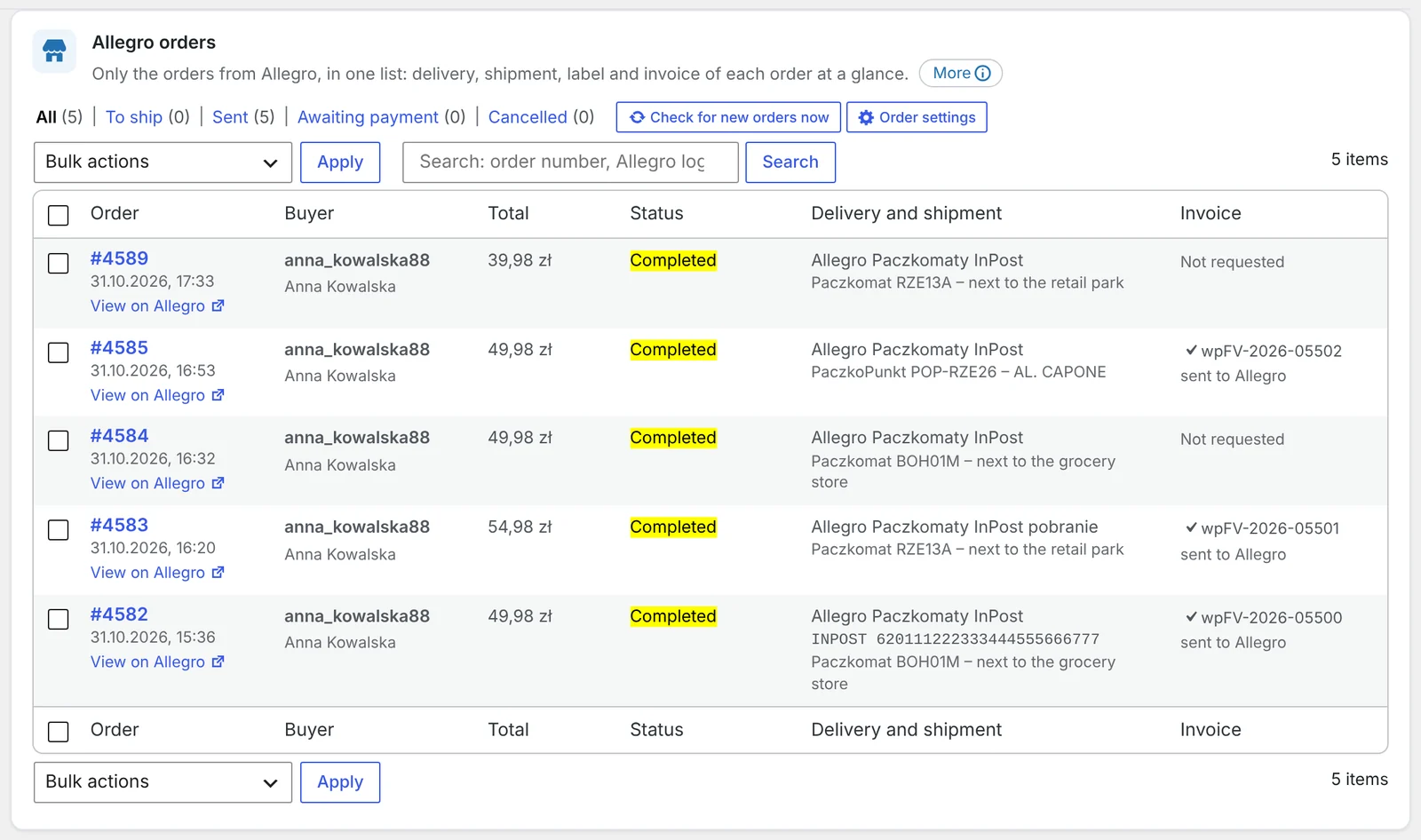
Step 3: the Allegro box in each order
An Allegro order opens like any other WooCommerce order. The Allegro box shows the Allegro order number, the buyer’s login, the pick-up point and whether the buyer wants an invoice. From there you send the tracking number – and the invoice – to Allegro.
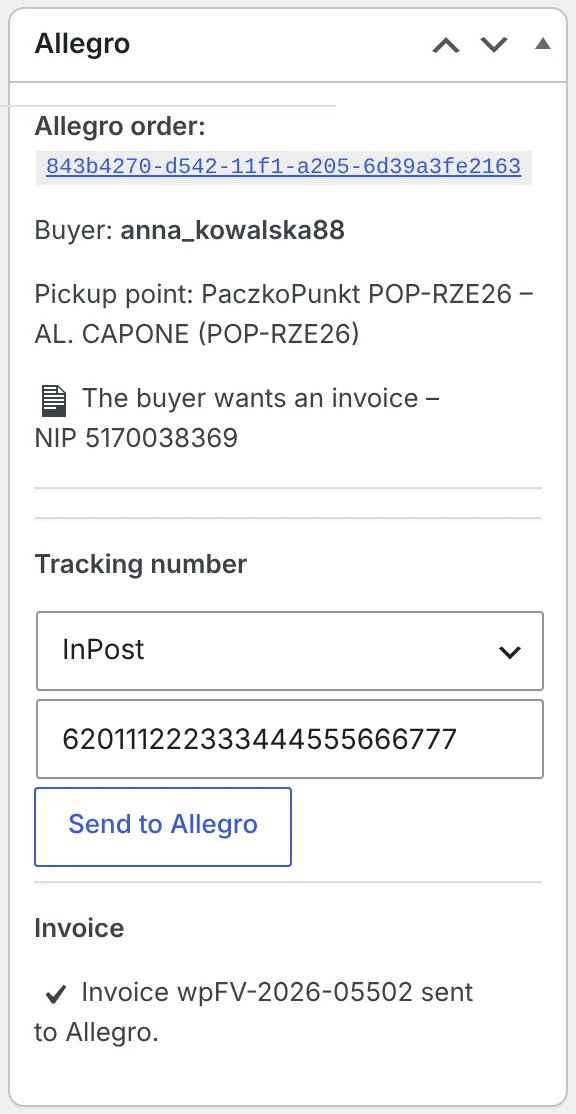
Common pitfalls
- Importing unpaid orders. They clutter the list and block stock – import paid orders only.
- Duplicate emails. Check that Allegro buyers don’t get messages from both Allegro and your store.
- Unmapped delivery methods. Without mapping, shipping plugins may not recognise Allegro orders.
- Skipping a test. Follow one order from import to “sent” with a visible tracking number on Allegro.
Frequently asked questions
Can Allegro orders appear in WooCommerce automatically?
Yes, through an integration with Allegro’s API. Paid orders arrive in your store every few minutes with buyer, delivery and payment details.
Will Allegro buyers receive emails from my store?
Only if you switch it on. Most sellers keep it off, because Allegro already sends notifications.
Will I see the parcel locker the buyer chose?
Yes. The pick-up point name and code are saved in the order, so you don’t retype anything.
What happens when a buyer cancels on Allegro?
The order is cancelled in your store as well, and the stock is restored.
Can I import orders placed before I connected the store?
Yes – usually for a recent period such as the last 7 or 30 days. Orders that already exist in the store are skipped.
3 November 2026 · 6 min read
How to List WooCommerce Products on Allegro in Polish from a Multilingual Store?
Allegro buyers search in Polish, Allegro has its own categories and required parameters, and titles are limited to…
2 November 2026 · 7 min read
How to Sync WooCommerce Stock and Prices with Allegro When Your Store Uses EUR?
Selling the same products in a euro-priced WooCommerce store and on Allegro in złoty raises two questions: how…
1 November 2026 · 7 min read
How to Sell on Allegro from a WooCommerce Store Outside Poland?
Allegro is the biggest marketplace in Poland and Central Europe, and it is open to companies from other…
4 November 2026 · 7 min read
How to Send WooCommerce Invoices to KSeF Automatically (Poland’s e-Invoicing System)
Poland's KSeF e-invoicing system changed how online shops issue invoices. Here's who it applies to and when, what…
3 November 2026 · 5 min read
A WooCommerce Plugin That Notifies Your Warehouse and Accountant When an Order Status Changes
Forwarding orders in chat apps and passing e-mails along is daily life for many shops. Learn how to…
2 November 2026 · 5 min read
How to Send a Customer a Payment Link for a WooCommerce Order
A phone order, an extra payment after a change, or a payment that didn't go through – in…
1 November 2026 · 6 min read
How to Send Customers an Email When a WooCommerce Order Status Changes
WooCommerce only tells customers about a few moments in an order's life. See which e-mails it sends on…
31 October 2026 · 6 min read
How to Change WooCommerce Order Status Automatically by Payment and Shipping Method
Local pickup, cash on delivery, parcel lockers – and in WooCommerce they all land in the same status.…
30 October 2026 · 6 min read
How to Edit a WooCommerce Order After It’s Been Placed – Even When It’s Paid
A customer calls to add one more product, but WooCommerce won't let you touch the order any more.…
29 October 2026 · 5 min read
How to Rename Order Statuses in WooCommerce (e.g. “Processing”)
"On hold" sounds like a problem, and "Completed" doesn't tell the customer whether the parcel is on its…