
What the plugin does
wpAsist Marketplace Hub connects a WooCommerce shop with European marketplaces in one panel. You keep working in your shop – the plugin lists your products on the marketplace, keeps offers up to date and shows sales from every channel in one place. The first marketplace is Allegro (Poland, Czechia, Slovakia, Hungary); eMAG, Kaufland, Bol.com, Amazon, eBay, OTTO, Cdiscount and CDON / Fyndiq follow as updates of the same plugin.
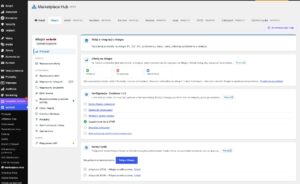
What it does
Dashboard with sales by channel
Orders, value and share of your shop and of every marketplace country (Allegro PL, CZ, SK…) for today, yesterday, 7 or 30 days. Refunds are subtracted.
Result: you see at once where you sell the most.
Allegro account connection
One or more Allegro accounts in one shop, connected with the official Allegro REST API (OAuth). You confirm the connection on Allegro – the plugin never sees your Allegro password. Tokens refresh by themselves and are stored encrypted.
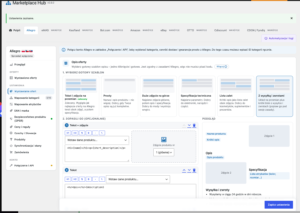
Listing offers with ready description templates
Six ready description templates that follow Allegro rules (text, photo, text next to photo, two photos). One click fills the description; you can adjust rows, insert product data (name, description, attributes, brand, SKU, EAN) and see a live preview. Only the formatting Allegro accepts is sent (headings, paragraphs, lists, bold).
Offer title from a pattern (max. 75 characters), photos from the product and its gallery, delivery price list, returns, complaints and warranty from your Allegro account, condition, shipping time, invoice, location and VAT rate per tax class.
Category and attribute mapping
Each shop category gets its Allegro category – chosen with a search after connecting the account, or by pasting an allegro.pl category link (the plugin takes the number from the address). Shop attributes fill Allegro parameters by name or by your own mapping; for every Allegro category you choose where each required field comes from (attribute, fixed value, SKU, EAN, brand, weight or custom field).
EAN and the Allegro catalogue
With an EAN the offer is linked to the product in the Allegro catalogue: Allegro fills most parameters itself and the offer joins the product page.
Product safety (GPSR)
Producer, responsible person in the EU and safety information are created on Allegro once and added to every offer. Single products can have their own data.
Allegro abroad: Czechia, Slovakia, Hungary
No second account is needed: offers from allegro.pl are also shown on allegro.cz, allegro.sk and allegro.hu. Per country you choose whether Allegro converts the price or the plugin sends your own price (automatic daily NBP rate or a fixed rate, markup for the country, rounding). Each product shows its visibility per country with the reason in plain language.
Checks before sending
Every offer is checked before it is sent (category, price, stock, image, delivery price list, required parameters, GPSR). Problems are shown at the product in plain language instead of raw API errors.
Listed offers
A list like the WooCommerce product list: status per country, offer number with a link to Allegro, price and quantity sent, account, date. Views (active, in progress, to fix, paused), search by name, SKU or offer number and bulk actions: list / update, pause, resume, check without sending, unlink from product.
Prices, stock and product scope
Markup, fixed amount and rounding, rules per category, safety reserve and maximum quantity, which products go to the marketplace (whole shop, chosen categories, all except chosen).
Background synchronisation
After every change in the shop (sale, refund, edit) the new stock and price go to the offer. When a product sells out, its offer is paused and it is resumed automatically when the product is back in stock. Removed, unpublished or excluded products end their offers. Title, description and photos are re-sent when their sync is switched on.
Variants
Each variation of a variable product becomes its own offer (its price, stock, photo and attributes) and the offers are joined into one Allegro variant set, e.g. sizes or colours.
Import of existing offers
Allegro → Import offers from Allegro downloads your offer list (nothing changes on Allegro) and links offers with products by signature (SKU), by name and by EAN. The rest can be linked by product ID or SKU, or turned into draft shop products with photos and description.
Offer templates
Sets of delivery price list, returns, warranty, handling time, markup and description layout, assigned to shop categories or chosen in a product’s Allegro tab.
Orders
Allegro orders come into WooCommerce → Orders with buyer, invoice data (NIP), delivery, pickup point, payment and VAT. Orders cancelled on Allegro are cancelled in the shop, status changes go back to Allegro, and paid orders from before switching on can be downloaded for the last 3–30 days. In Orders → Delivery mapping each Allegro delivery method gets a shop shipping method.
Tracking numbers, invoices and Ship with Allegro
The Allegro box on the order screen sends tracking numbers and PDF invoices to Allegro. With Wysyłam z Allegro you create shipments and labels (PDF A4/A6) for one order or many at once from the order list, and order a courier pickup.
Invoices (optional)
The Invoices tab switches on the built-in invoicing module: PDF invoices, credit notes, pro forma, packing slips, a document register and KSeF. Invoices are issued at the chosen order status, attached to e-mails and sent to Allegro orders (with KSeF – after KSeF accepts them). In Allegro → Orders you choose which Allegro orders get an invoice: only when the buyer asks, every order or never. If the wpAsist plugin “PDF Invoices, Credit Notes & KSeF” is installed, it is used instead – documents and numbering are shared.
Good to know
- Works with HPOS (High-Performance Order Storage), Cart and Checkout blocks and WPML.
- Background jobs run on WooCommerce Action Scheduler – no server cron needed.
- Every setting tile has a short description and a “More” button with a full guide and an example.
How the plugin uses the Allegro API
The plugin is an integration for sellers: it works only on the Allegro accounts the shop owner connects and only for the actions the owner starts or switches on.
| Area | What the plugin does | Allegro API resources |
|---|---|---|
| Account | Reads the login and the marketplaces of the account, refreshes tokens. | /me, /marketplaces, OAuth token |
| Categories | Search and browse categories, read category parameters. | /sale/categories, /sale/matching-categories, /sale/categories/{id}/parameters |
| Catalogue | Finds a product by EAN. | /sale/products |
| Offers | Creates and updates offers, ends and resumes them, reads their state. | /sale/product-offers, /sale/offer-publication-commands |
| Images | Sends product photos to Allegro. | /sale/images (upload) |
| Offer conditions | Reads delivery price lists, return, complaint and warranty conditions. | /sale/shipping-rates, /after-sales-service-conditions |
| GPSR | Creates the producer and the responsible person. | /sale/responsible-producers, /sale/responsible-persons |
| Orders | Downloads orders, sends back status, tracking numbers and invoices. | /order/events, /order/event-stats, /order/checkout-forms, /order/carriers, /order/{id}/billing-documents |
| Shipping | Creates shipments and labels with Wysyłam z Allegro, orders courier pickups. | /shipment-management |
| Variants and import | Joins offers into variant sets, reads the seller’s offer list. | /sale/offer-variants, /sale/offers |
Allegro data is stored only in the seller’s own WordPress database. API keys and tokens are stored encrypted (libsodium); nothing is sent to wpAsist.
Installation and first settings
Before you start
You need WordPress 6.4 or newer, WooCommerce 8.5+, PHP 7.4+ and an administrator account. Back up your shop before installing any new plugin. To list offers you need an Allegro account with two-step login switched on.
Step 1: install and activate the plugin
- Go to Plugins → Add New Plugin, click Upload Plugin, choose
wpasist-marketplace-hub.zipand click Install Now. - Click Activate Plugin.
Result: the left menu has wpAsist → Marketplace Hub.
Step 2: activate the licence
Go to wpAsist → Licences, paste the key from the e-mail and click Activate licence. Without an active licence you can set everything up, but nothing is sent to the marketplaces.
Step 3: connect Allegro
- Go to Marketplace Hub → Allegro → 1. Connection → Allegro accounts.
- Add the account and click Connect with Allegro. (In the development version you paste the Client ID and Client Secret of your Allegro application; the release version registers the application automatically.)
- The Allegro login page opens – log in and confirm access; you come back to the shop.
- The status changes to Connected; Test connection shows your login.
Step 4: go through the setup checklist
The Allegro menu follows the order of setting up, and the Overview shows what is still missing (every item is a link to its setting):
- 2. Products & categories – Products to list (whole shop or chosen categories), Category mapping (an Allegro category for each shop category and, below it, Category parameters – where every required field comes from), Attributes, EAN & brand.
- 3. Offer content & terms – Description & title (a ready description template, title pattern, images), Delivery & returns (delivery price list, returns, complaints, warranty, shipping time), Product safety (GPSR).
- 4. Prices – Prices, VAT & rules (markup, rounding, rules per category, VAT rates), Foreign markets (Czechia, Slovakia, Hungary).
- 5. Selling & automation – Selling & sync (switch selling on, what to synchronise, stock), Orders.
Step 5: list the first product
- Go to Products, tick one product and choose List / update on Allegro from Bulk actions – or use the product’s Allegro tab.
- Open Allegro → Listed offers: after a moment the status is Active with a link to the offer. If something is missing, the reason is shown in the Status column.
Troubleshooting
| Symptom | What to do |
|---|---|
| “Choose” is greyed out in category mapping | Connect the Allegro account first – or paste an allegro.pl category link into the field. |
| The product shows “Needs fixing” | Read the reason under the status and fix it (e.g. missing image, category or required parameter), then list it again. |
| The offer is not visible abroad (Czechia, Slovakia, Hungary) | Add delivery to that country to the delivery price list on Allegro and give the product an EAN. |
| Something else | Set logs to “Everything (for support)” in Automation & logs, repeat the action and send us the log “wmh-allegro”. |